How to add a live badminton scoreboard to your livestream with OBS
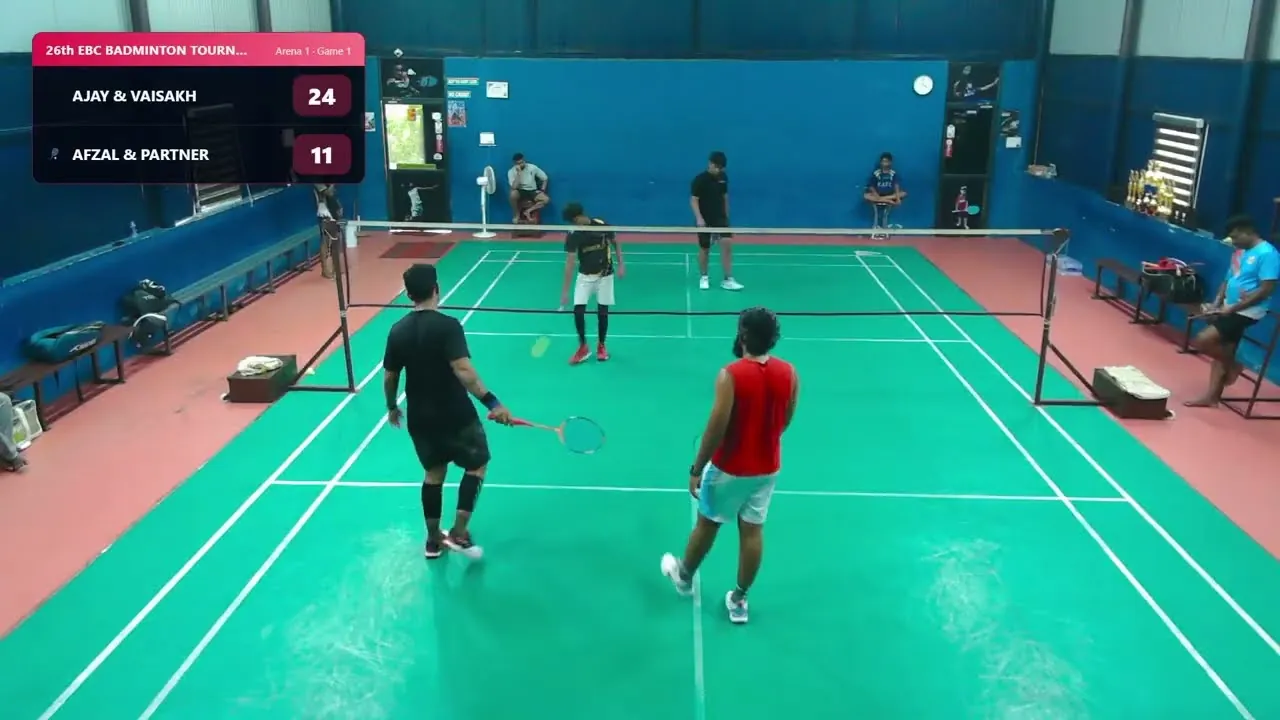
A scoreboard turns a camera pointed at a court into something people stay and watch. This guide adds a live badminton scoreboard to your YouTube or Twitch livestream using OBS, the free streaming app. It updates itself on every rally, shows results and the draw between matches, and takes about five minutes to set up.
The short answer:
- Create your tournament in GameOnn and copy the court’s overlay URL from Manage → Streams.
- In OBS, click + under Sources and choose Browser.
- Paste the URL, set the width to 1920 and the height to 1080, and click OK.
- Drag the Browser source above your camera in the Sources list.
The background is transparent, so only the scoreboard appears over your video.
How a browser-source scoreboard works
OBS can show a web page as a layer in your scene, called a Browser source. If that page has a transparent background, anything drawn on it floats over your camera feed, exactly like TV graphics.
GameOnn gives every court its own overlay page. When the scorer on that court taps a rally on their phone, the page updates within a moment, and so does your stream. There’s nothing to type into OBS and no score to forget to change. When a match ends the overlay celebrates the winner, then fills the gap until the next match with results and the tournament board.
Because OBS draws the scoreboard into the picture before sending it, it works wherever OBS streams to: YouTube Live, Twitch, Facebook Live or anything else with a stream key. Nothing changes in GameOnn when you switch platforms.
What you need first
- OBS Studio (free, from obsproject.com) with your camera already added as a source. New to OBS? Start with How to stream to YouTube with OBS.
- A tournament in GameOnn with the number of courts set, and players or pairs added. The draw builds itself.
- Someone scoring each court on a phone, in the browser or in the GameOnn app (on Google Play and the App Store). It’s one tap per rally.
Add the scoreboard to OBS, step by step
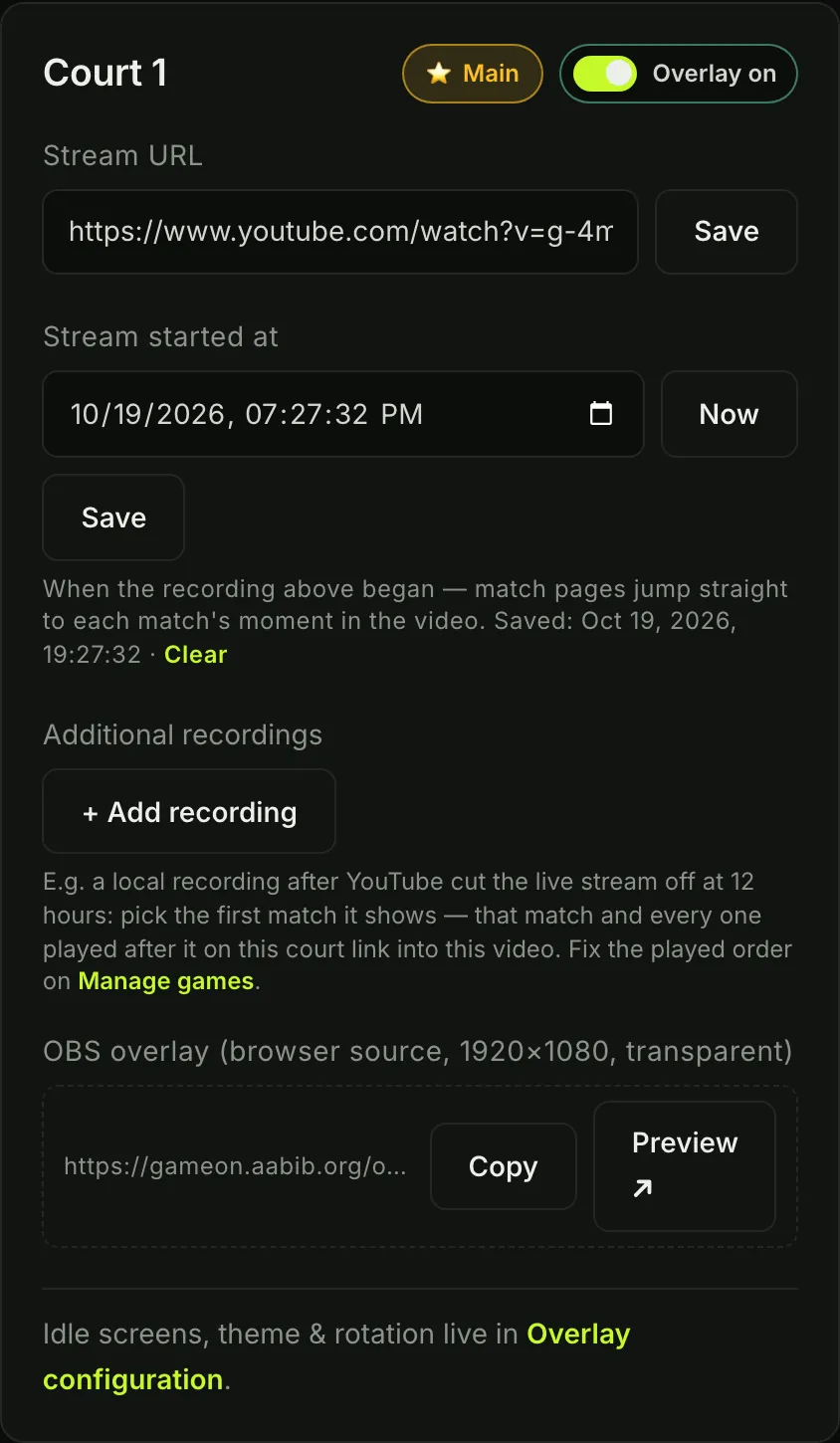
- Find the overlay URL. In GameOnn, open your tournament and go to Manage → Streams. Each court has an “OBS overlay” row with its own link. Click Copy.
- Check your OBS canvas. In OBS, open Settings → Video and set the Base (Canvas) Resolution to 1920 × 1080. The overlay is designed for that size.
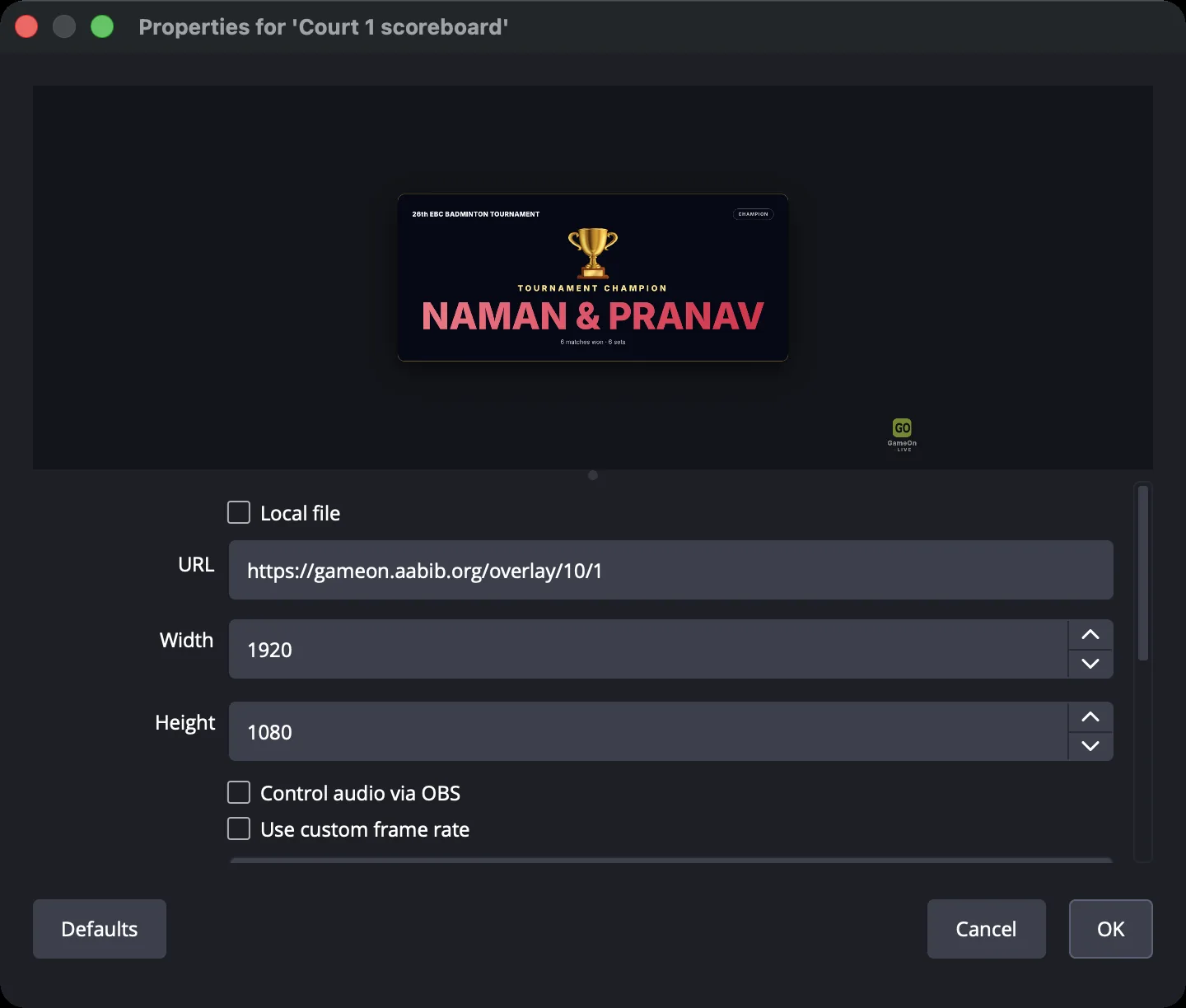
- Add a Browser source. In the Sources box, click +, choose Browser, give it a name such as “Court 1 scoreboard” and click OK.
- Paste the URL and set the size. Paste the link into URL, set Width to 1920 and Height to 1080, and click OK. Leave the default custom CSS as it is. It’s what keeps the background transparent.
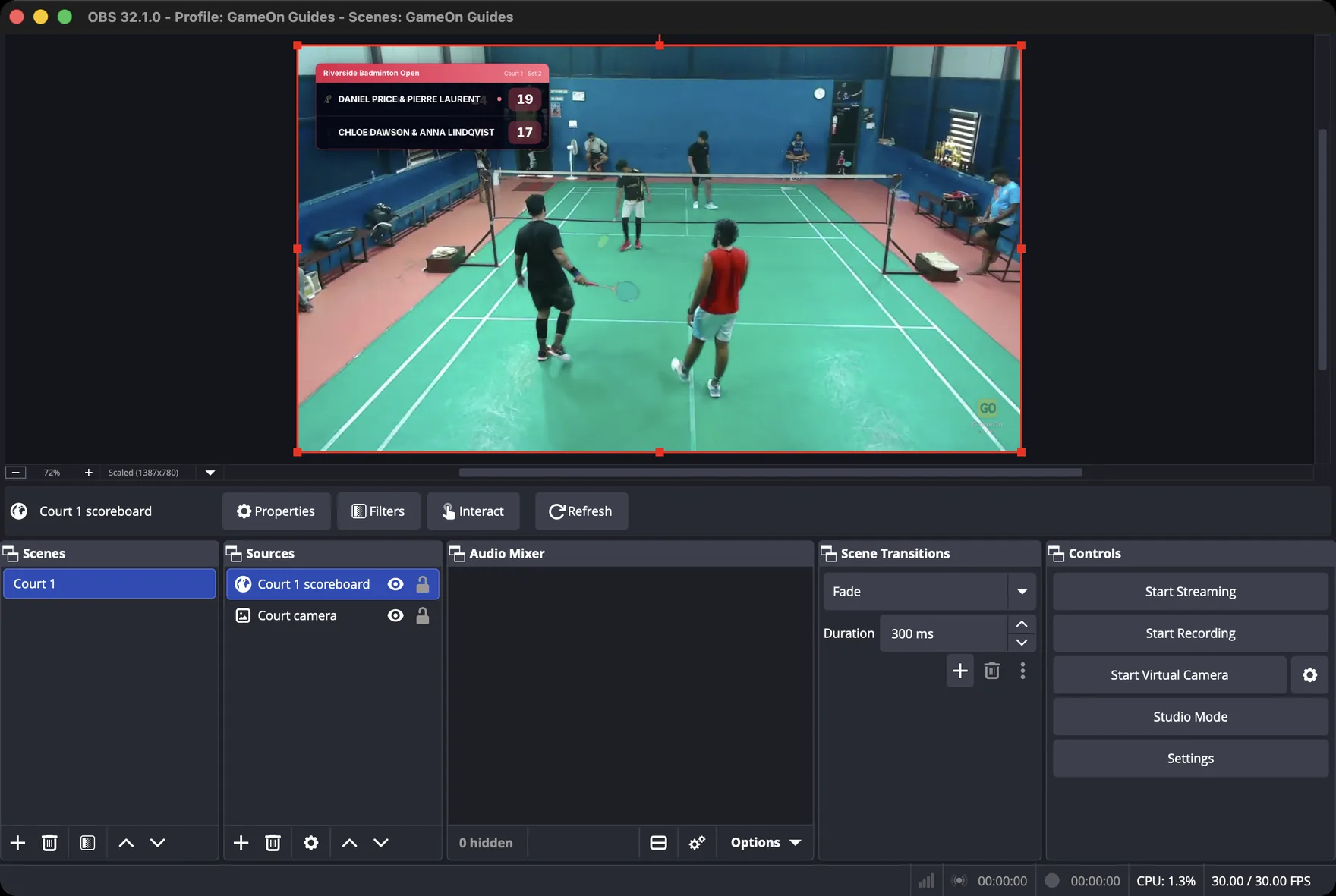
- Put it on top. Sources higher in the list are drawn on top. Drag the scoreboard above your camera source.
- Check it fills the frame. The red outline around the Browser source should match the edges of the preview. If it doesn’t, right-click it and choose Transform → Fit to screen.
That’s normal. The overlay is transparent until a match goes live on that court or a between-match screen comes round. Start a match in GameOnn, score a rally, and the scoreboard slides in.
Choose a theme and corner
In GameOnn, open Manage → Overlay. For each court you can pick a theme (Midnight, Emerald, Crimson or Mono), the corner the live scoreboard sits in, and its font size (60–200%). Try the combinations here:
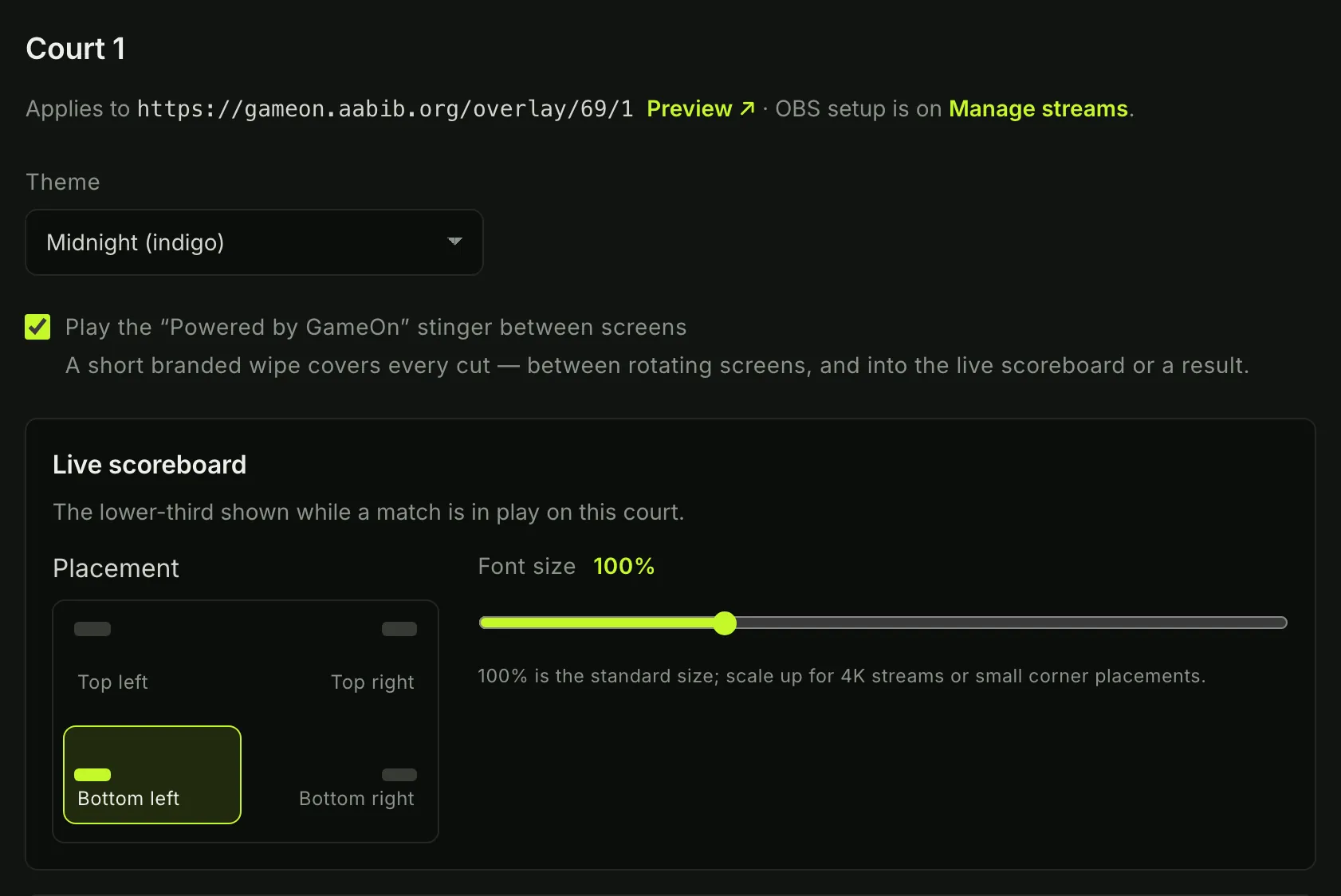
- Pick the corner the action doesn’t use. With a camera behind the baseline, the near player’s feet are at the bottom of the frame, so one of the top corners often works best.
- Match your club colours with the theme. Mono is the safest choice if your stream has its own branding.
- Watch it on a phone. Most viewers do, so bump the font size if the names look small.
- Set one court up the way you like, then use Apply to all courts.
What shows between matches
The gap between matches is when viewers drift away. Rather than an empty court, the overlay rotates through screens you choose under While the tournament is running:
- Tournament board: what’s live and what’s next on every court.
- Up next: the coming match, with each side’s tournament or career stats.
- Last match: the winner, or the full set-by-set scorecard.
- All matches: the schedule with scores so far.
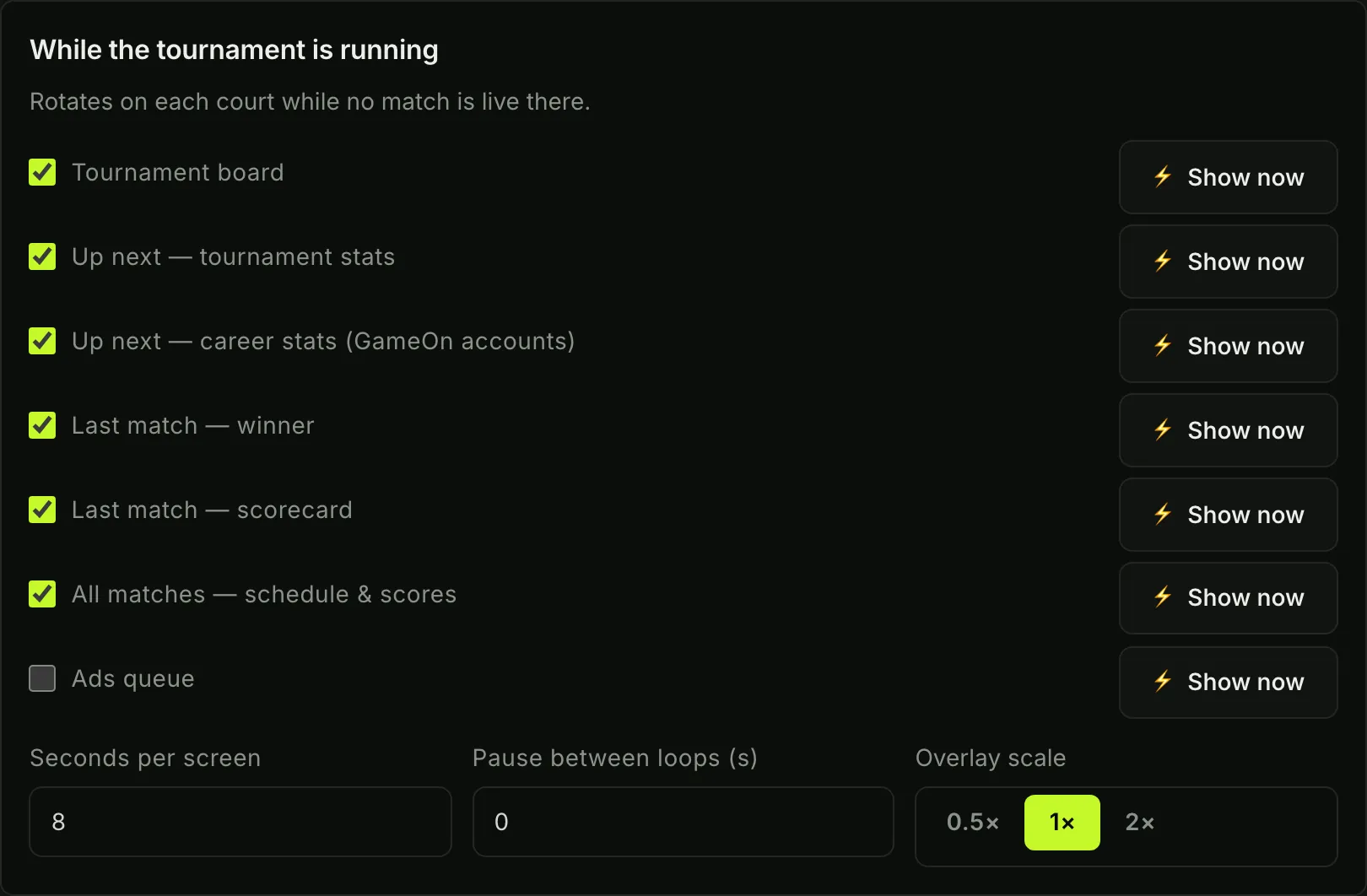
You choose how many seconds each screen stays up and how long to pause between loops. Once a champion is decided, a second rotation (When the tournament is over) takes over with the champion, their journey through the draw and their profile.
Need a screen on air right now, say the result of a final? Press ⚡ Show now next to it and it goes out straight away. A live match always cuts back in.
Showing sponsors on your stream
Club tournaments run on sponsors, and a stream is an easy way to give them something back. Turn on the Ads queue screen in the rotation and add sponsor slots, each one either an image URL or a YouTube video link with an optional caption. Images stay up for the time you set, videos play to the end (or up to a maximum), and a live match always takes priority.
Several courts, one stream
If you switch between courts on a single stream, use the main broadcast link at the top of Manage → Streams instead of a court’s own link. It follows whichever court you mark with ☆ Set main, so you add one Browser source to OBS once and change the featured court from GameOnn with a single click. The scoreboard always matches the court on screen.

Streaming every court separately? Give each OBS (or each scene) its own court’s overlay link instead. Each court also has an Overlay on/off switch if you need to hide the graphics for a moment.
Troubleshooting
| Problem | Fix |
|---|---|
| Overlay is empty | It’s transparent until a match is live or a rotation screen is due. Check Overlay on for that court, and use Preview ↗ in Manage → Streams to open it in a browser tab. |
| Black box covers the camera | The Browser source’s Custom CSS was changed. Restore the default, which sets a transparent background. |
| Scoreboard is tiny, huge or off-centre | Width and height must be 1920 × 1080. Then right-click → Transform → Fit to screen. |
| Score stopped updating | Right-click the source → Properties → Refresh cache of current page. If it’s still stuck, check the scorer’s phone hasn’t lost its connection. |
| Overlay restarts when switching scenes | In the source’s properties, untick Shutdown source when not visible. |
| Scoreboard hides the action | Move it to another corner or reduce the font size under Manage → Overlay. |
Next step: once the stream is running, link it back to GameOnn so every match page plays its own replay. That’s the last part of the YouTube and OBS guide. For the bigger picture (kit, camera position and internet), see How to livestream badminton to YouTube.
Frequently asked questions
How do I add a live scoreboard to OBS?
Add a Browser source to your scene (Sources, then +, then Browser), paste the scoreboard’s overlay URL, and set the width to 1920 and the height to 1080. The page has a transparent background, so only the scoreboard appears over your camera. Keep the Browser source above the camera in the Sources list.
Do I have to type the scores into OBS?
No. The overlay updates itself whenever the scorer taps a rally on their phone in GameOnn, so nobody touches OBS during a match.
Will the score be out of sync with the video?
Viewers see them together. The scoreboard is drawn into the picture by OBS before it is sent to YouTube, so however much delay YouTube adds, it adds it to both.
Does the scoreboard work on YouTube and Twitch?
Yes. OBS draws the scoreboard into the video before it is sent, so it shows on YouTube Live, Twitch, Facebook Live or any platform OBS streams to. Per-match replays on GameOnn match pages use YouTube, which lets each replay start at the moment its match began.
Can I add a scoreboard to a livestream from just my phone?
Most phone streaming apps can’t layer a live web page over the camera, so the reliable way is to use the phone as the camera and a laptop running OBS to add the scoreboard. Free apps such as DroidCam, or Continuity Camera on an iPhone with a Mac, make the phone show up in OBS like a webcam.
Does the GameOnn overlay work with Streamlabs or vMix?
It is a normal web page with a transparent background, so it should work in any streaming app that has a browser source, including Streamlabs Desktop and vMix. This guide uses OBS Studio, which is free.
Is the badminton scoreboard overlay free?
Yes. The overlay, its themes and the between-match screens are part of GameOnn, which is free to use for running and scoring tournaments.
Why is my overlay blank in OBS?
The page is transparent on purpose, so it looks empty until a match is live on that court or a between-match screen is showing. Check that the court’s overlay is switched on under Manage, Streams, and use the Preview button there to open it in a browser tab.