How to livestream a badminton tournament on YouTube: a complete beginner’s guide
You don’t need a production crew to livestream your club’s badminton tournament to YouTube. A recent phone, a tripod and a laptop can produce a badminton livestream that people actually want to watch, scoreboard included. This guide assumes you have never streamed anything before.
The short answer: to livestream a badminton tournament on YouTube you need
- a camera (a recent smartphone is enough) on a tall tripod behind the baseline;
- a laptop running the free streaming app OBS Studio;
- a YouTube channel with live streaming turned on, which can take up to 24 hours the first time;
- roughly 8–22 Mbps of upload speed per court, depending on quality;
- a live scoreboard overlay, so viewers know the score.
Set it all up a few days early, do a test stream, and on the day it’s mostly pressing “Start”.
How do you livestream badminton to YouTube?
The whole process, start to finish. Each step links to the part of this guide that explains it.
- Turn on live streaming for your YouTube channel at least a few days before. The first activation can take up to 24 hours. How
- Get the kit together: a phone or camera, a tall tripod, a laptop and a power lead. What to buy
- Put the camera behind the baseline, raised 2–3 metres, with the whole court in frame. Where exactly
- Check your upload speed at the venue against the quality you want. Calculator
- Set up OBS with the camera and a live scoreboard, and connect it to YouTube. Scoreboard
- Do a test stream, then go live on the day with Start Streaming. Running order
What equipment do you need to stream badminton?
Less than you think. Everything below “Essential” is enough for a stream that looks good. The rest makes life easier once you have a tournament or two behind you.
| Item | Essential? | What to look for |
|---|---|---|
| Camera | Yes | Any smartphone from the last few years that records 1080p. A webcam is usually too wide-angle and too low quality in an indoor hall. |
| Tripod | Yes | Tall: at least 1.8 m (6 ft) extended, so the camera sees over the net. A phone clamp, or a balcony rail if your hall has one. |
| Laptop | Yes | Windows, Mac or Linux from roughly the last five years. Newer machines have a hardware video encoder, which keeps them cool and smooth while streaming. |
| Internet | Yes | Enough upload speed. See the calculator below. A network cable beats Wi-Fi every time. |
| Power | Yes | An extension lead. Streaming drains a phone in an hour or two, so keep everything on mains power. |
| Mobile hotspot | Backup | A 4G/5G phone or router, in case the venue’s internet gives up. |
| Second camera | No | Lets you stream a second court or cut to a close-up. Add it once the basics work. |
You don’t need a microphone. The sound of a badminton hall (shoes squeaking, the shuttle cracking off the strings, the crowd) comes through the phone’s own mic and makes a stream feel live.
Where should the camera go?
Behind one baseline, raised up, looking down the length of the court. It’s the angle you see on TV coverage of the big badminton tournaments, and there’s a reason for it: viewers can see both players, the net and every line, so they can tell whether a shot was in.
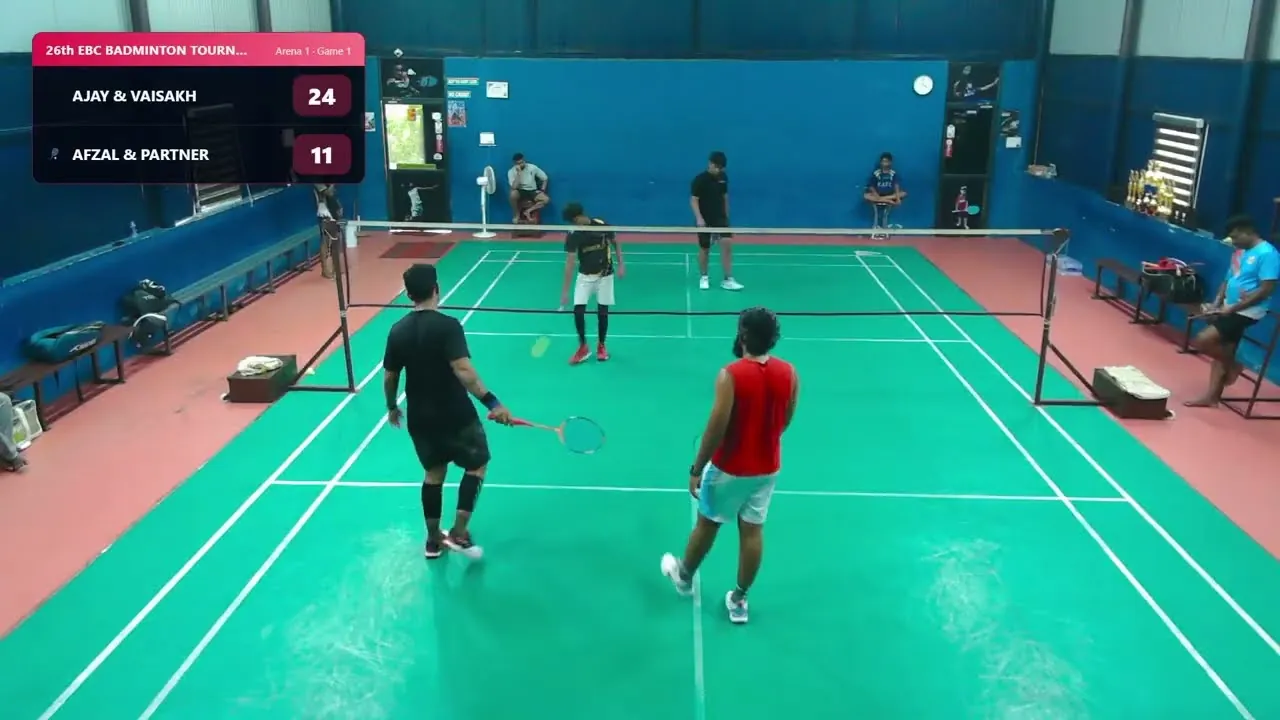
Getting the shot right
- Height: 2–3 metres up, a few metres back from the baseline. Higher is better: from eye level, the net hides the far player’s feet.
- Framing: landscape, with the whole court and a little space above it for high clears. Don’t zoom in to “follow the action”. A fixed, wide shot is easier to watch.
- Settings: 1080p at 30 frames per second. Lock focus and exposure (tap and hold on most phones), so the picture doesn’t pump every time a player in a white shirt walks past.
- Flicker: sports-hall lights can strobe on camera. Set your camera app’s shutter speed or anti-flicker to match the mains: 1/50 or 1/100 in Europe and the UK (50 Hz), 1/60 or 1/120 in North America (60 Hz).
- Windows: don’t point the camera at bright windows. The camera exposes for the daylight and the court goes dark.
Getting the camera into your laptop
The camera captures the picture. The laptop adds the scoreboard and sends the result to YouTube. You need a way to get one into the other:
- Phone as a webcam: free apps such as DroidCam (Android and iPhone), or Continuity Camera on an iPhone with a Mac, make your phone show up in OBS like a webcam. A USB cable is more reliable than Wi-Fi in a busy hall.
- Camcorder or camera with HDMI out: plug it into a USB HDMI capture card and it appears in OBS as a video device. It costs a little more, but you get proper zoom and better low-light quality.
You can, but YouTube only allows going live from its phone app once a channel has a minimum number of subscribers, and you can’t add a scoreboard. Streaming through OBS on a laptop has no subscriber minimum.
How much upload speed do you need?
Streaming uses your upload speed, the number broadband adverts rarely mention. Run a speed test (search “speed test” in your browser) from the spot where the laptop will sit, ideally while the hall is busy. Then check it here:
- Plug in if you can. A network cable to the venue router avoids the Wi-Fi everyone’s phones are fighting over.
- Mobile data works. A good 4G or 5G signal often uploads faster than a sports club’s broadband. One hour at 6 Mbps uses about 2.7 GB of data, so check your allowance.
- Lower quality beats stuttering. A smooth 720p stream is far better to watch than a 1080p one that keeps buffering.
Setting up YouTube and OBS
Two things to do at home, well before the day:
- Turn on live streaming for your YouTube channel. In YouTube Studio, choose Create → Go live. YouTube asks you to verify the channel with a phone number, and the first activation can take up to 24 hours, so do it at least a few days before the tournament.
- Install OBS Studio from obsproject.com. It’s free, and its auto-configuration wizard (Tools → Auto-Configuration Wizard → “Optimize for streaming”) picks sensible settings for your laptop. Then add your camera as a source and connect OBS to your YouTube account.
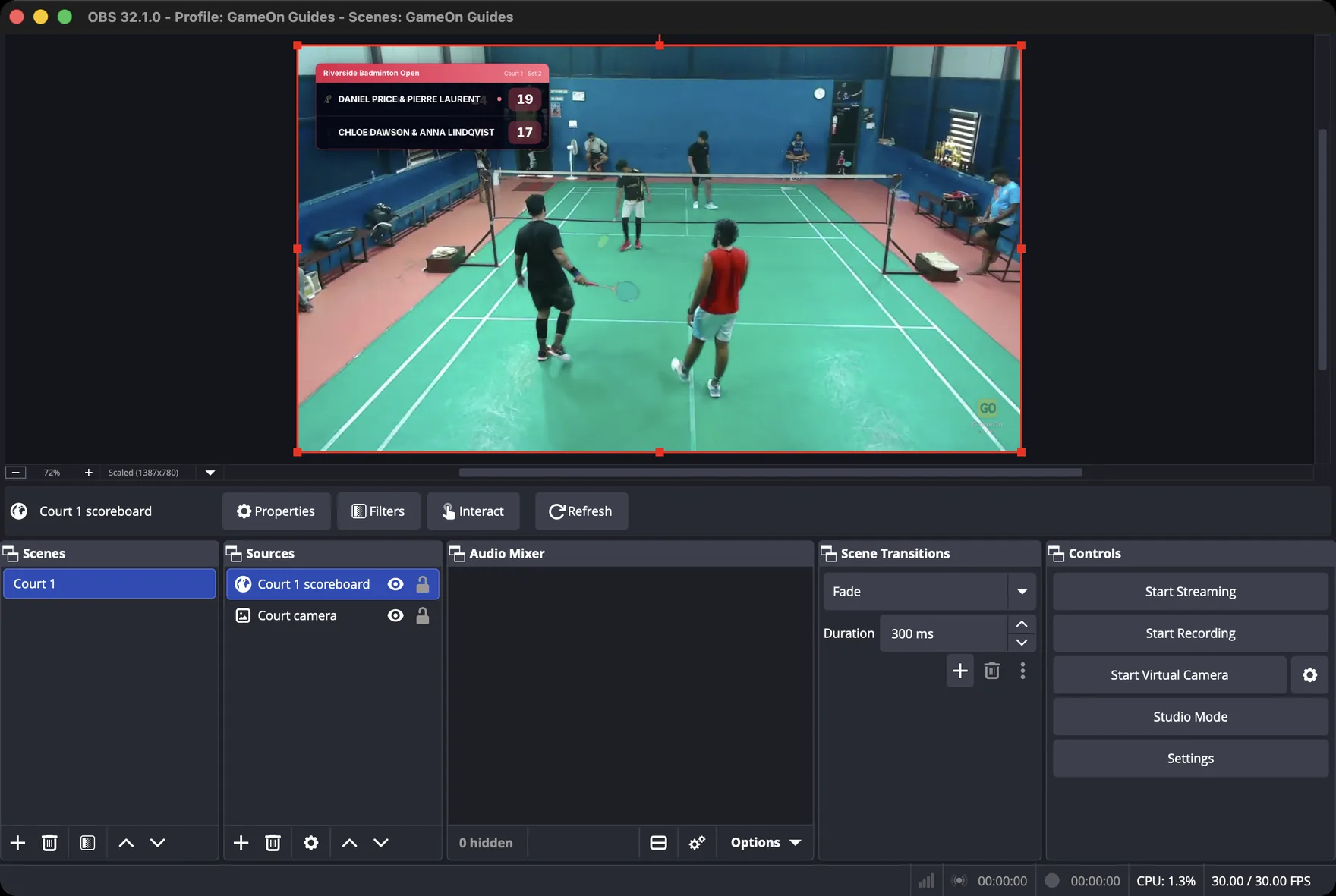
Both steps are covered click by click in How to stream to YouTube with OBS, including the exact settings to use.
Adding a live scoreboard to the stream
A badminton stream without a scoreboard is hard to follow: viewers who join mid-game have no idea who’s winning. Typing scores into OBS by hand is a full-time job, so let the scoring do it instead.
With GameOnn the setup looks like this:
- Create the tournament in GameOnn, add the players or pairs, and the draw builds itself across your courts.
- Score from a phone. Whoever umpires each court taps once per rally, in the browser or in the GameOnn app (on Google Play and the App Store).
- Copy the court’s overlay link from Manage → Streams and add it to OBS as a Browser source at 1920 × 1080.
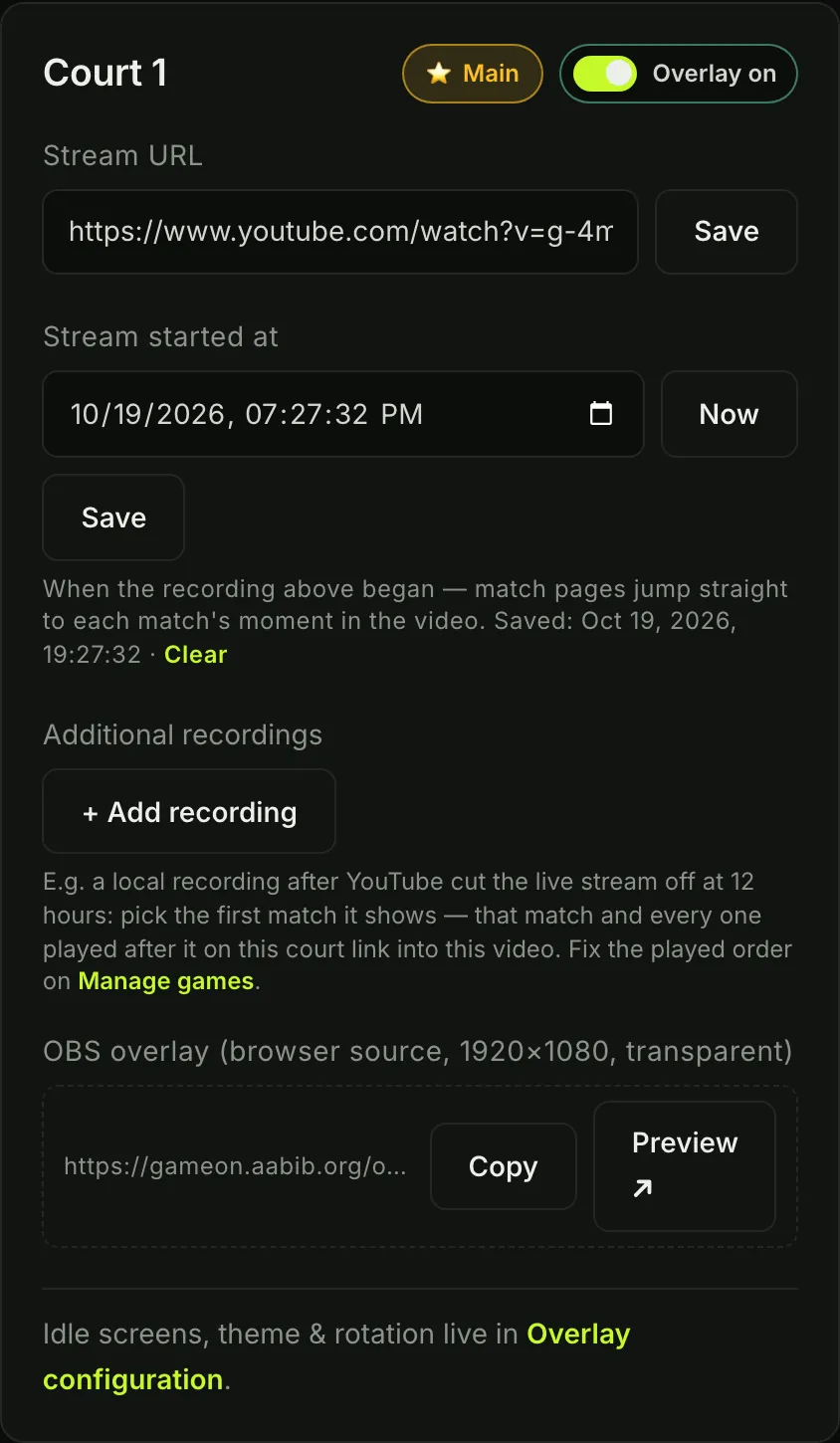
From then on the scoreboard on your stream changes the moment the scorer taps. Between matches it shows the latest result and the tournament board on its own. The step-by-step version is in How to add a live badminton scoreboard to your livestream.
How do you stream more than one court?
There are two approaches. Start with the first one.
One stream, featured court
One camera per court, all going into one laptop, and you switch between them in OBS like a TV director. GameOnn’s main broadcast overlay link follows whichever court you mark as main, so the scoreboard always matches the picture. It uses one stream’s worth of upload and one YouTube video, but it needs someone watching the laptop all day.
One stream per court
Each court gets its own camera, its own YouTube live stream and its own overlay link, and every match on every court is watchable. It needs more kit (usually a laptop per court) and multiplies your upload needs. Use the calculator above with the number of courts. In GameOnn, save each court’s YouTube link separately and every match page plays the right court’s video.
Do a test stream first
A test stream catches 90% of problems while there’s still time to fix them. Ideally do it at the venue, otherwise at home with the same kit:
- Set the YouTube stream’s visibility to Unlisted or Private and stream for at least 10 minutes.
- Watch it on a different device using mobile data. Is it smooth? Can you read the score?
- Check YouTube Studio’s stream-health indicator, and the green/yellow/red status in the bottom bar of OBS.
- Listen to the audio. If you can hear yourself talking at the laptop, so can everyone else.
On the day: a simple running order
- Arrive an hour early. Set up the tripod, run the power and cables, and run a speed test from the streaming spot.
- Frame the shot with players warming up on court, and lock focus and exposure.
- Start the stream 10 minutes before the first match with the tournament board showing, so early viewers know they’re in the right place.
- Tell GameOnn when the stream started (one tap on “Now” under Manage → Streams), so every match gets its own replay link afterwards.
- Share the link to the GameOnn tournament page in your club’s group chat. It has the live scores, the draw and the video in one place.
- Check in every half hour on the stream health. Nothing else should need you.
There’s a tick-box version of this list, saved in your browser, at the end of the YouTube and OBS guide.
After the last match
Stop the stream in OBS and YouTube keeps the whole day as a video on your channel. A seven-hour video isn’t something anyone will scroll through, though. Because GameOnn knows when the stream started and when each match began, every match page links to its own moment in the recording. A player can share “watch my final” and it starts at the first serve.
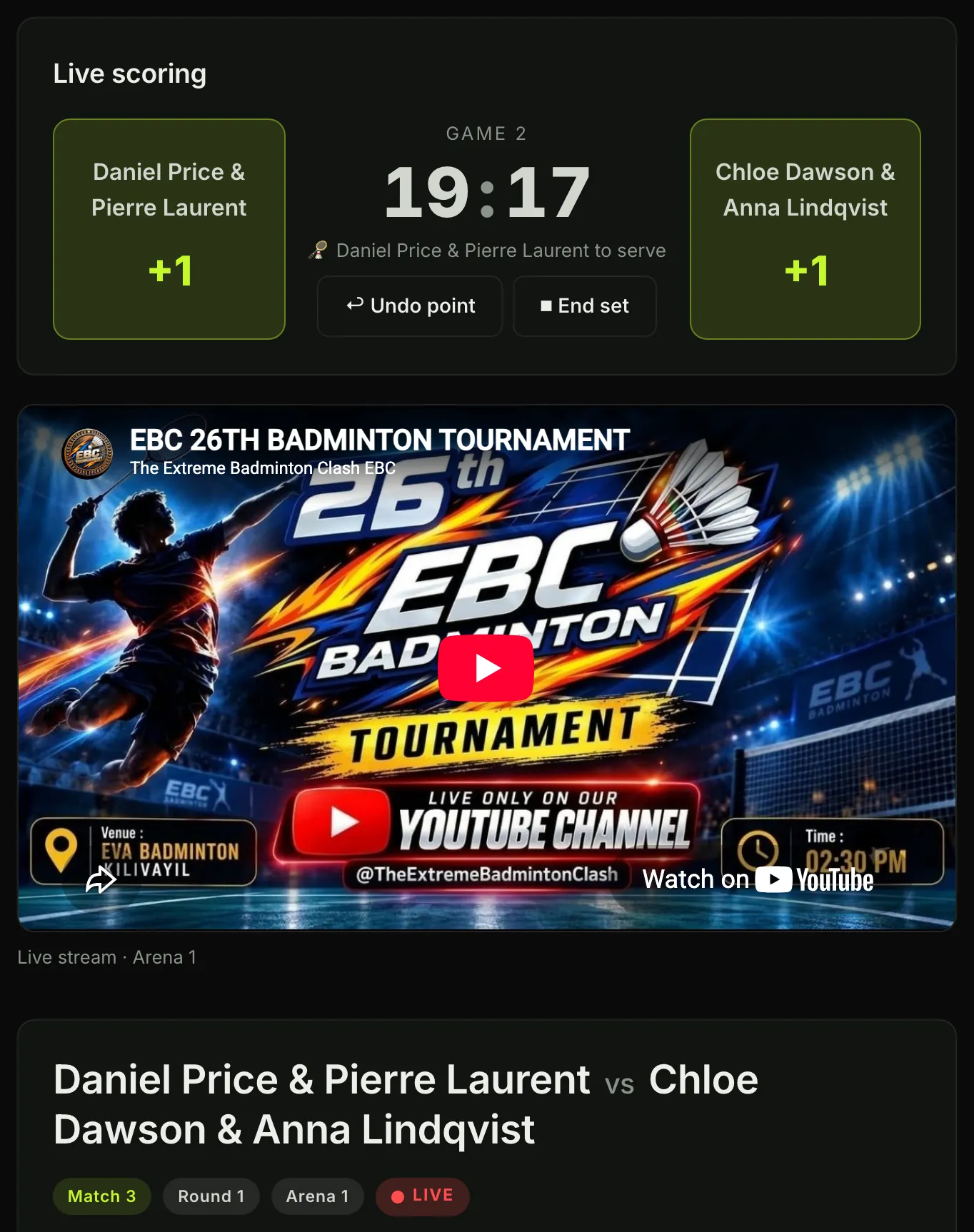
Want to see it working? The 26th EBC Badminton Tournament was run and streamed this way: 38 doubles pairs on one court, every match scored live, with the draw and set-by-set scorecards public to anyone.
Frequently asked questions
Can I livestream a badminton tournament from just my phone?
Yes, in two ways. You can go live straight from the YouTube app, but YouTube only allows that once a channel reaches a minimum number of subscribers, and you cannot add a scoreboard. The better option is to use the phone as the camera and send its picture to a laptop running OBS, which has no subscriber minimum and lets you add live score graphics.
How much internet speed do I need to stream badminton?
It is upload speed that matters. For one court in 1080p at 30 frames per second, plan on about 22 Mbps of upload for YouTube’s recommended quality, or about 8 Mbps at the minimum that still looks fine. 720p needs roughly 13 Mbps and 5 Mbps. Multiply by the number of courts you stream separately, and run a speed test at the venue, not at home.
Is live streaming a tournament free?
The software can be. OBS Studio is free and open source, YouTube does not charge to stream, and GameOnn is free for running the tournament, live scoring and the scoreboard overlay. You only need the kit: a phone or camera, a tripod and a laptop.
Do I need permission to stream a club tournament?
Check with the venue and the organising club, tell players before the day that matches will be streamed, and follow your club or federation’s safeguarding rules, especially for junior events, which often need parental consent.
Can I play music on my badminton stream?
Avoid it. Copyrighted music, including songs playing over the hall’s speakers, can get your stream muted or blocked by YouTube’s Content ID. The natural sound of the hall works well.
How many people do I need to stream a tournament?
One person can run a single-court stream once it is set up, as long as someone is scoring each court. With a live scoreboard, the scorer’s phone updates the stream automatically, so nobody has to type scores into OBS.